
 CamsAhead.com
Cameras in Chicago, IL
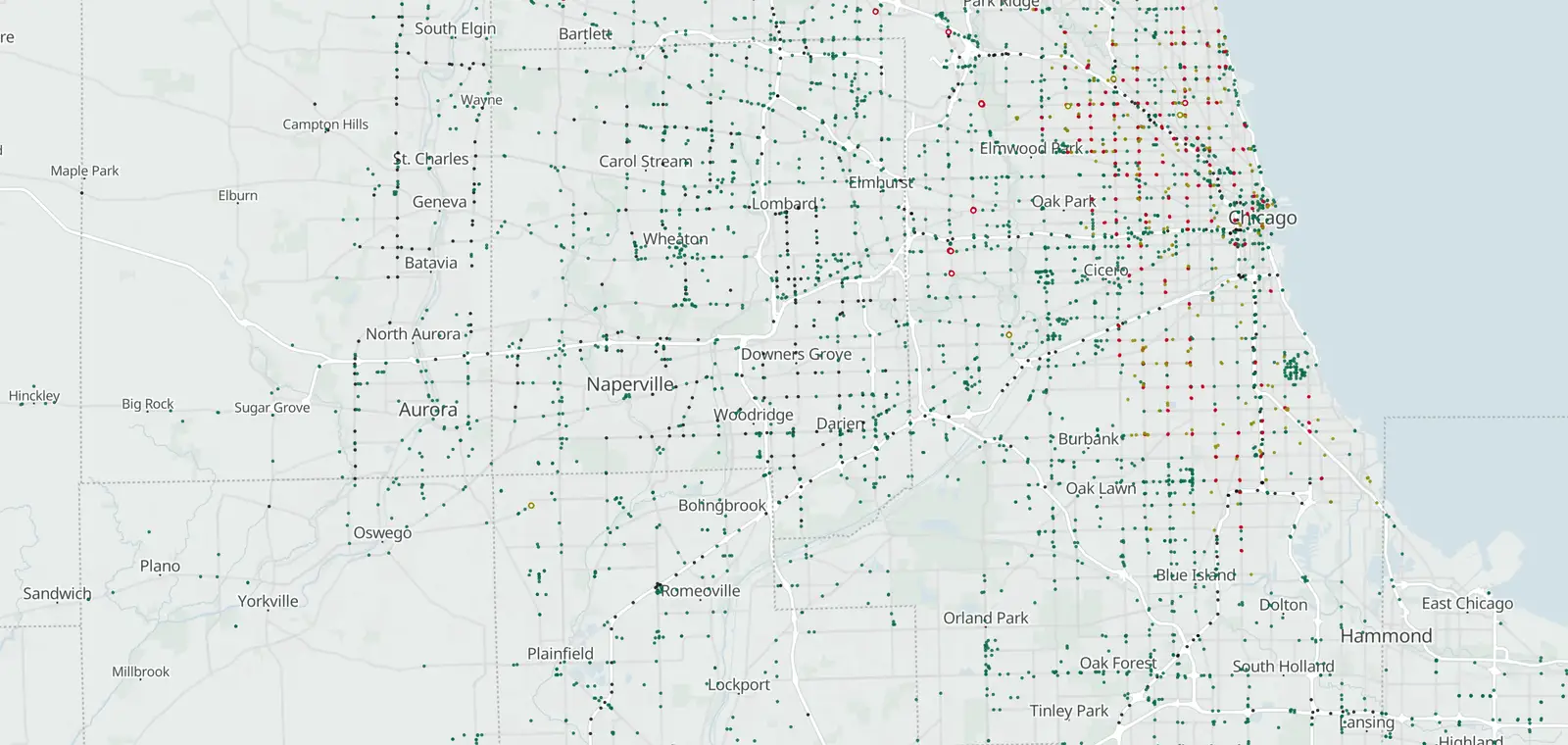
209 speed camera locations, 300 red light camera locations, 818 mapped plate readers and 84 traffic cameras in Chicago.
Plate readers © OpenStreetMap contributors · © OpenMapTiles
Chicago, by camera type.
Chicago: 818 plate readers mapped. Nearby: Cicero 38, Berwyn 35, Evergreen Park 47 and Oak Lawn 35.
Speed cameras in Chicago
From City of Chicago, all on the map.
4 more speed or red light cameras are on the map, counted apart from official lists.
- Speed cameras · Running (as of Oct 2026) 209 locations listed by City of Chicago City of Chicago Data Portal ↗
The law, in short:
625 ILCS 5/11-208.8 (automated speed enforcement in safety zones) (citation not yet confirmed).
Red light cameras in Chicago
From City of Chicago, all on the map.
- Red light cameras · Running (as of Sep 2026) 300 locations listed by City of Chicago City of Chicago Data Portal ↗
The law, in short:
625 ILCS 5/11-208.6 (citation not yet confirmed).
License plate readers in Chicago
818 plate readers are on the map in Chicago, and 99 of them carry the Flock Safety tag. Most don't say who runs them. Chicago Police Department is tagged on 229.
First-mapped dates here run from Oct 31, 2021 to Nov 7, 2026. 365 of the 818 were first mapped in 2026, with 49 in September alone.
The EFF's Atlas of Surveillance lists Chicago Police Department and Illinois Attorney General's Office as agencies that use plate readers.
Who can search plate reads in Chicago
EyesOnFlock lists no transparency portal for the Chicago Police Department (Oct 14, 2026). It posts no sharing list, so who can search reads from its cameras is not stated. The sharing lists of 164 agencies name it, so it can search their reads.
Chicago Police Department
- Agencies on its posted sharing list
- Not stated
- Keeps each read for
- Not stated
- Agencies whose reads it can search
- 164
No transparency portal listed, Oct 14, 2026 · See its sharing lists, as of Oct 14, 2026
Get one summary email a month on new plate readers in Chicago
Portal figures and sharing lists: EyesOnFlock (CC BY-SA 4.0), from Flock Safety transparency portals.
Traffic cameras in Chicago
From Illinois Department of Transportation.
Camera tickets in Chicago
Follow the instructions and the deadline on the notice.
Know when cameras in Chicago change.
Free email alerts for cameras on your routes that start issuing tickets. One summary email a month.
- In your monthly summary: the day a camera near you starts issuing tickets
- New cameras mapped or reported near you
- What plate readers keep, and who runs them
- Your street, your distance, the camera types you pick
156,883 cameras listed or mapped so far.
Sources and updates
How this page was made: CamsAhead writes each page type once, then fills it with this place's data from the sources below.
- City of Chicago Data Portal: speed camera program, running, as of Oct 2026 This site provides applications using data that has been modified for use from its original source, www.cityofchicago.org, the official website of the City of Chicago. The City of Chicago makes no claims as to the content, accuracy, timeliness, or completeness of any of the data provided at this site. The data provided at this site is subject to change at any time. It is understood that the data provided at this site is being used at one’s own risk.
- City of Chicago Data Portal: red light camera program, running, as of Sep 2026
- OpenStreetMap contributors: plate readers, speed and red light cameras, data as of Nov 7, 2026; ODbL 1.0
- EFF Atlas of Surveillance: agencies that use plate readers, data as of Aug 2026; CC BY 4.0
- Illinois Department of Transportation: Camera locations: Illinois DOT, CC BY-SA 2.0. Read November 7, 2026.
- US Census Bureau: city boundary (cartographic file 2025)
Plate reader points are mapped by OpenStreetMap volunteers (data as of November 7, 2026).
How CamsAhead counts cameras · Report a problem · Report a camera