
 CamsAhead.com
© OpenStreetMap contributors (ODbL) · © OpenMapTiles
The A1 has 41 speed cameras on the map, and one of them is an average speed camera. The most are in Islington, with 13. 33 of its 51 cameras of all kinds have a posted limit on the map, most often 30 mph. The counts are from the map, as of 26 October 2026.
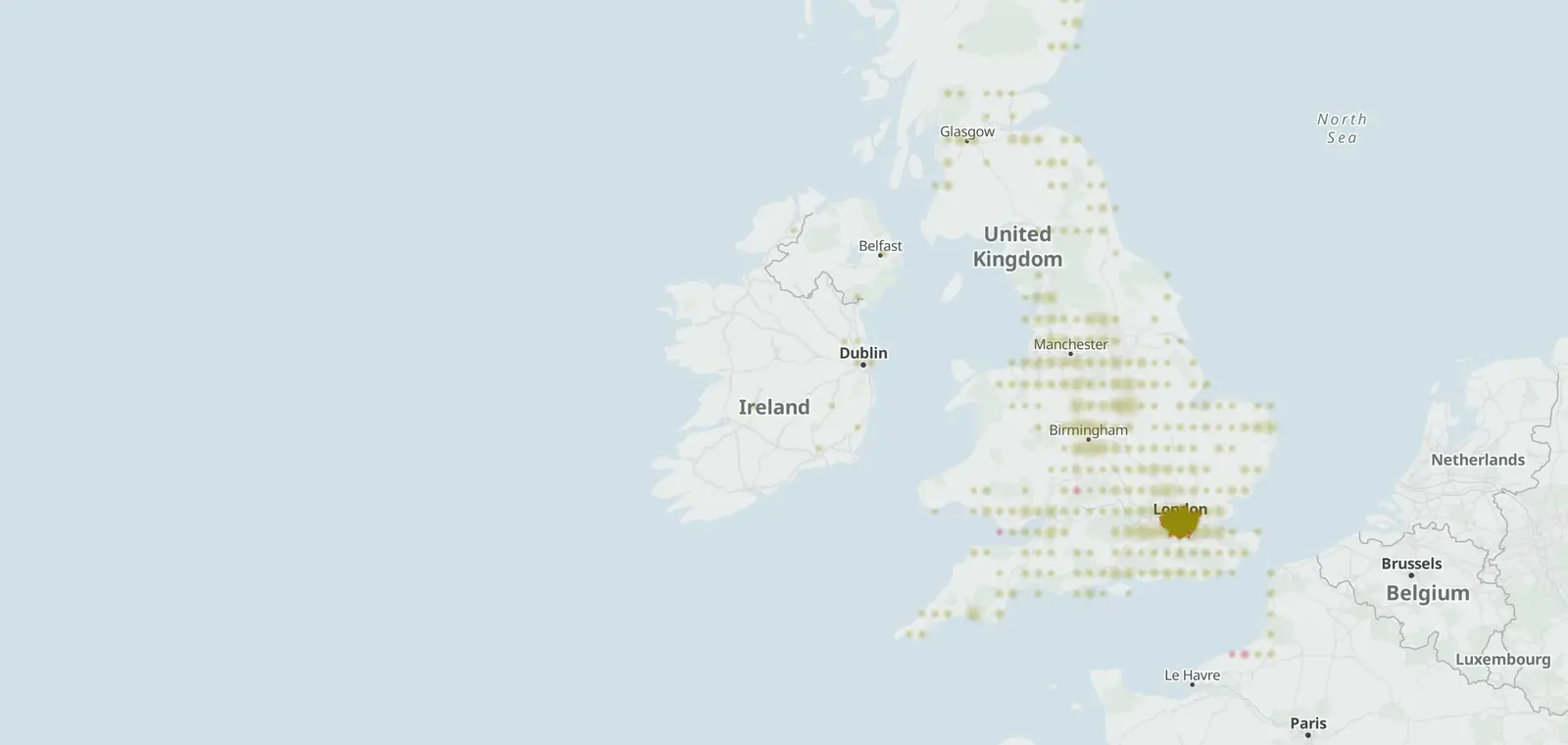
A1 speed camera map
Each bright dot is a camera on the A1. Faint dots are other cameras close by. Open the full map to zoom in on a stretch of the road.
Cameras on the A1 by kind
51 cameras on the A1 are on the map in all. Average speed cameras are speed cameras too, so the speed total holds them.
- Speed cameras at one spot 40
- Average speed cameras 1
- Red light cameras 10
Where the cameras on the A1 are
The A1 runs through 11 local authority areas that have cameras on the road. Each row counts the cameras on the road in that area.
By region: London 26, East of England 5, North East 3 and East Midlands 1.
| Local authority area | Region or nation | Cameras |
|---|---|---|
| Islington | London | 13 |
| Barnet | London | 9 |
| Scottish Borders | Scotland | 8 |
| East Lothian | Scotland | 6 |
| Haringey | London | 4 |
| Central Bedfordshire | East of England | 3 |
| Northumberland | North East | 3 |
| Edinburgh | Scotland | 2 |
| Peterborough | East of England | 1 |
| Bedford | East of England | 1 |
| Bassetlaw | East Midlands | 1 |
Posted limits on the A1
33 of the 51 cameras on the A1 have a posted limit on the map. The table counts them by limit.
| Posted limit | Cameras |
|---|---|
| 30 mph | 14 |
| 40 mph | 6 |
| 50 mph | 6 |
| 60 mph | 5 |
| 70 mph | 2 |
Average speed cameras on the A1
No average speed sections are mapped on the A1. Its 1 average speed cameras are on the map as single points.
When the A1 cameras were mapped
11 of the 51 cameras carry the day they were first added to the map. The earliest is from 9 May 2012, the latest from 7 September 2025.
More roads and places
Other roads with pages of their own that run through the same regions, most speed cameras first.
Sources and updates
- OpenStreetMap contributors: speed, average speed, red light and other enforcement cameras, and the motorways and A roads they sit on, data as of 26 October 2026; ODbL 1.0
- Transport for London (London Safety Camera Partnership): London's speed and red light camera sites, read 7 November 2026. Powered by TfL Open Data. Contains OS data © Crown copyright and database rights 2016 and Geomni UK Map data © and database rights [2019]; TfL Transport Data Service licence (Open Government Licence v2.0 with TfL amendments)
- Office for National Statistics: Local Authority Districts (May 2026) Boundaries UK BGC (generalised 20 m, clipped to the coastline), and the English regions, which place each camera. Source: Office for National Statistics licensed under the Open Government Licence v.3.0. Contains OS data © Crown copyright and database right 2026.
- Natural Earth: the UK outline on the map, 1:50m (public domain)
Cite this page: “A1 Speed Cameras: 41 Mapped, by Area and Limit (UK)”, CamsAhead.com, https://camsahead.com/uk/roads/a1/, updated 7 November 2026.
How CamsAhead counts cameras · Report a problem · Report a camera